
The template list
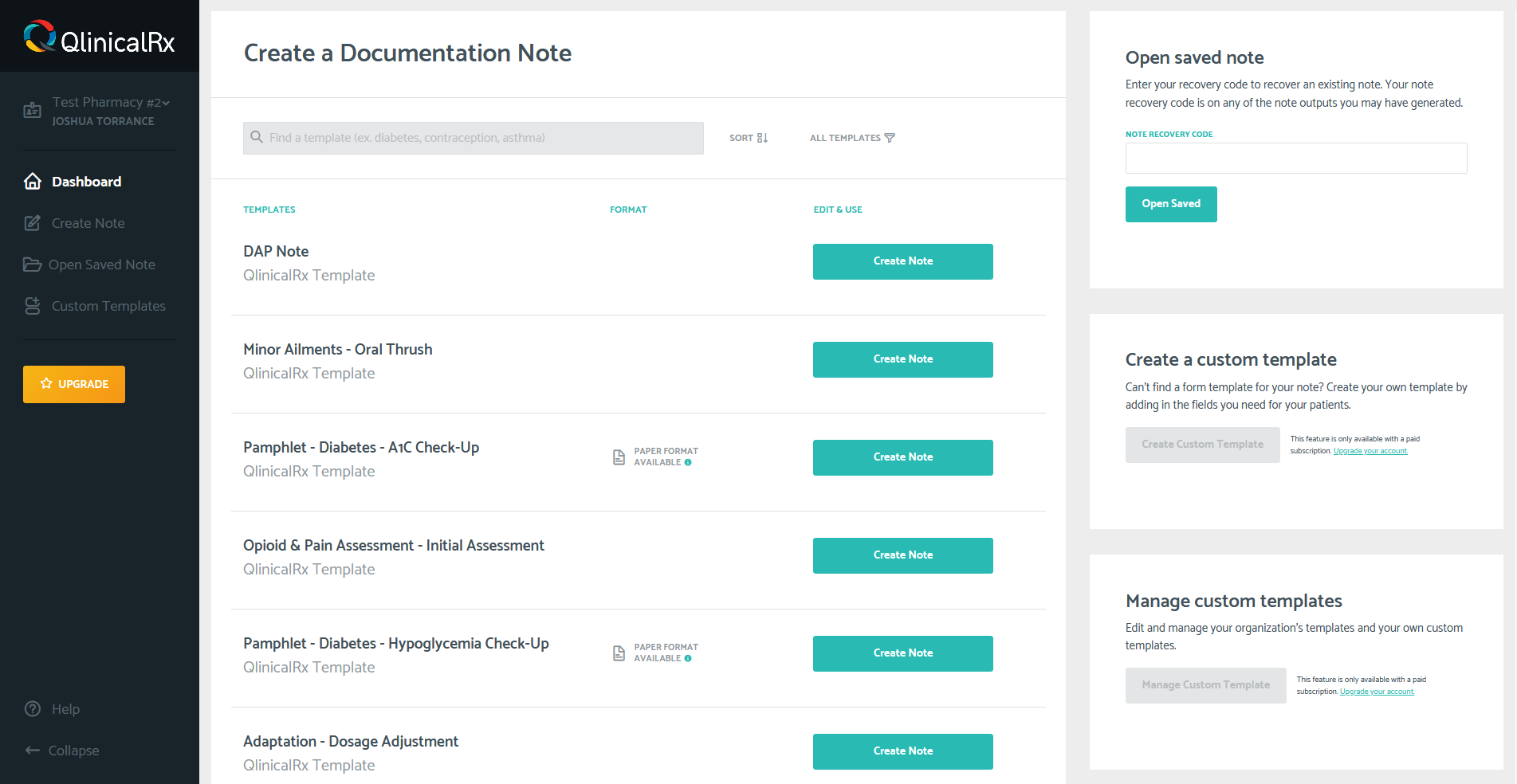
Once you have logged into the QlinicalRx app, you will see your dashboard. The first view will give you a variety of templates available to you. You can scroll down this list to see more and the application will add more to the list as you go.
Searching for templates
As more templates are added to QlinicalRx, it would be difficult to find specific ones out of the hundreds available. The easiest way to find a template you looking for is to use the search bar.
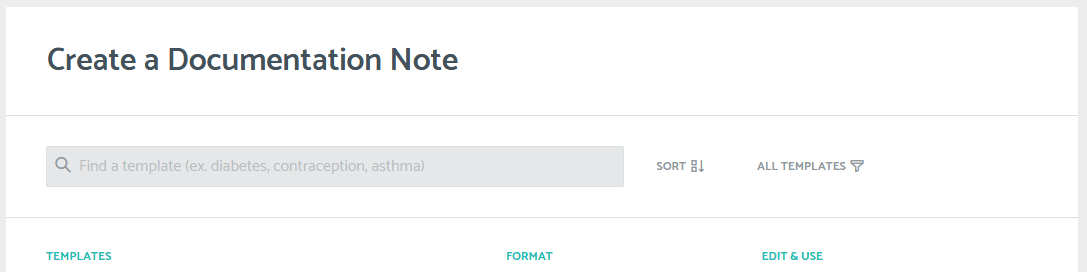
You can search for templates by name or categories. For example, if you are looking for diabetes templates, you can search for "diabetes" and you will get a list of all the diabetes templates available.
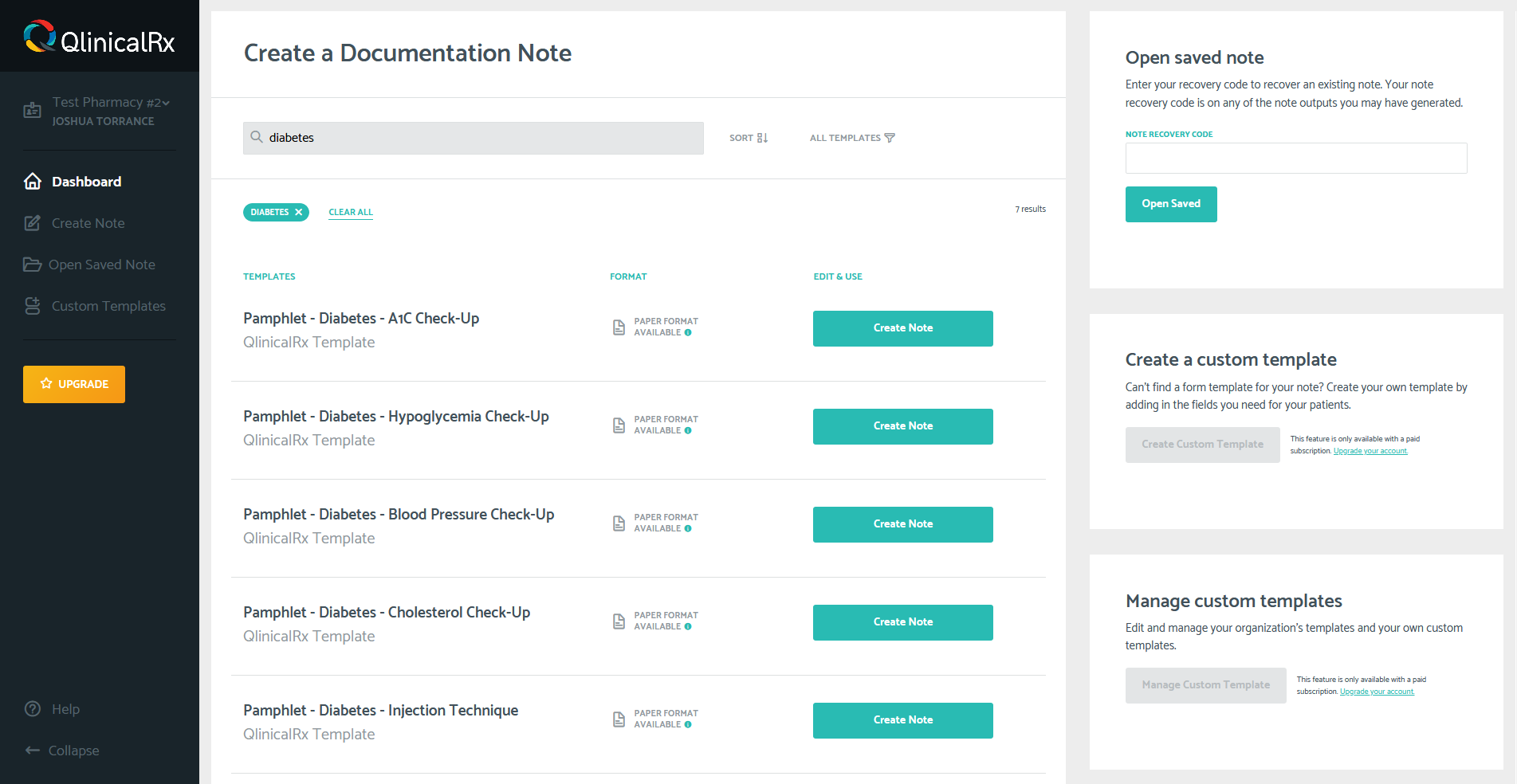
You can remove your search by clicking on the "x" beside the search term, click the "clear all" button, or delete the search terms.
Sorting and filtering
You can further refine your template list by sorting and filtering.
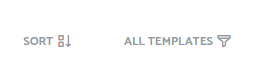
Click on the "SORT" button to reveal three options:
- Title A > Z: sorts the results alphabetically
- Title Z < A: sorts the results in reverse alphabetical order
- Most Recent: shows you the templates you accessed most recently first, and then sorts the remaining results alphabetically
The default sort option is "Most Recent"
You can also apply filters that limit the results further. You can access these by clicking on "ALL TEMPLATES" and choose any of the four options:
- QlinicalRx Templates: includes templates that were created by QlinicalRx
- Pharmacy Templates: includes templates that were created by the pharmacy workspace you are signed into
- My Templates: includes templates that you have created for yourself
- Pamphlet Templates: includes templates that have an associated QlinicalRx Pamphlet
You can remove these filters by clicking the "x" by their name or unchecking them from this menu.